Product scenes
Start from a product photo and describe a new setting, surface, or mood. Explore studio, lifestyle, and seasonal concepts while asking the model to preserve the details that identify your product.
Turn a clear idea into an image, or give an existing visual a new direction. Create product scenes, campaign artwork, portraits, and everyday edits with reference images, flexible formats, and optional search.
14
Aspect ratios
1K–4K
Output resolution
Up to 14
Reference images per edit
Start from a product photo and describe a new setting, surface, or mood. Explore studio, lifestyle, and seasonal concepts while asking the model to preserve the details that identify your product.
Use reference images to guide a character across different scenes. Describe the face, clothing, and distinguishing features to retain as you explore a new pose or environment.
Build square posts, portrait stories, and wide cover art from a shared creative direction. Select the target aspect ratio before generation so the composition starts in the right format.
Develop a poster, label, or packaging idea with a defined hierarchy, palette, and visual theme. Include the exact wording you want, then check spelling and layout before production.
Request a different background, outfit, or lighting setup in plain language. State what should change and what should stay the same to keep the edit focused on your brief.
Adapt a concept for another audience with region-specific settings, seasonal details, or supplied translated copy. Review every version for language accuracy and local context.
Nano Banana 2.1 is available in both AudioX image tools, with the same resolution choices and credit pricing.
Text to Image starts with your written brief: the subject, setting, composition, lighting, and any text the image should contain. Image to Image adds one to fourteen references so you can request an edit or guide a new composition with existing visuals.
Choose an aspect ratio and a resolution before generating. Web search and image search are separate options, both off by default. Enable the search option that fits your brief when you want the model to draw on additional context or visual references.
Use 1K to explore a direction, then choose 2K or 4K when your next generation needs more output resolution. Clear instructions and useful references matter at every size.
These published Nano Banana 2.1 examples from WaveSpeed show portrait detail, illustrated typography, atmospheric scenes, and food photography. Use them as inspiration for your own brief; outputs vary with prompts and settings.
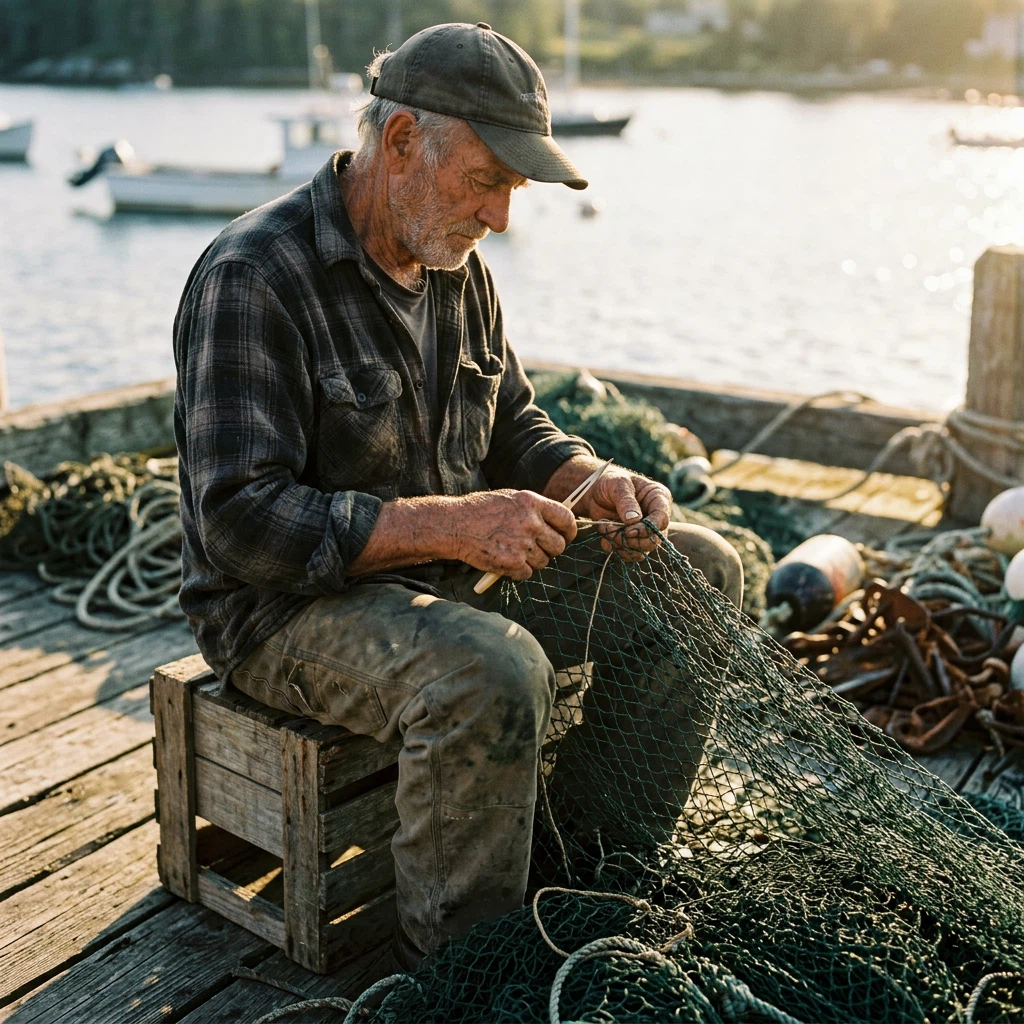
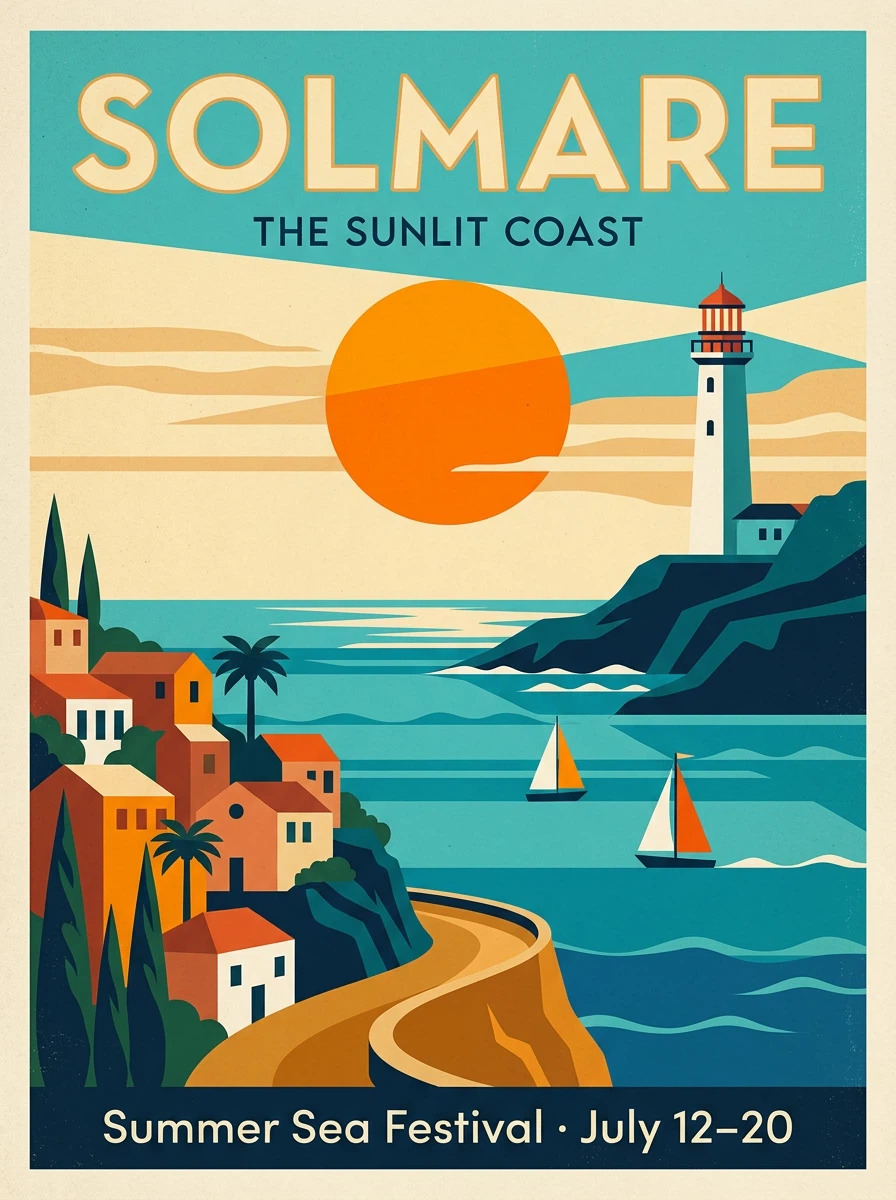
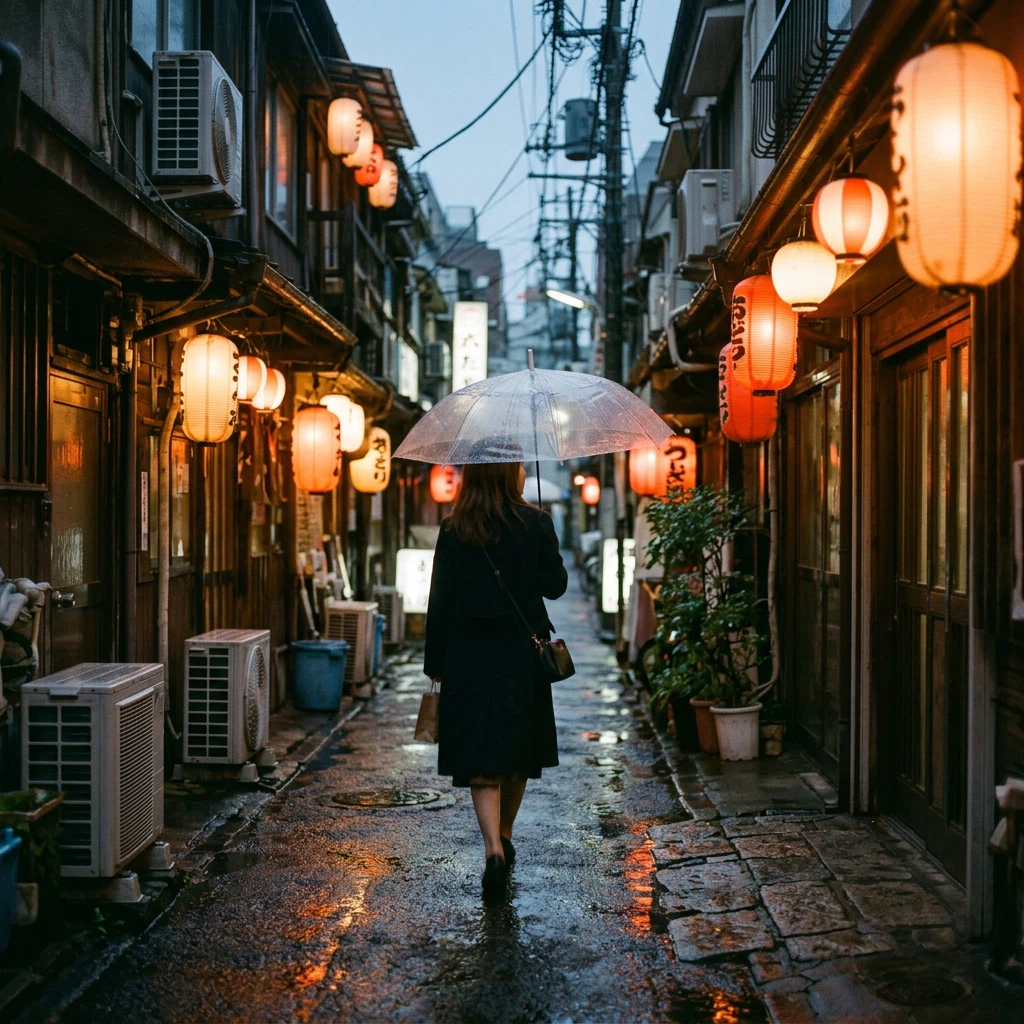
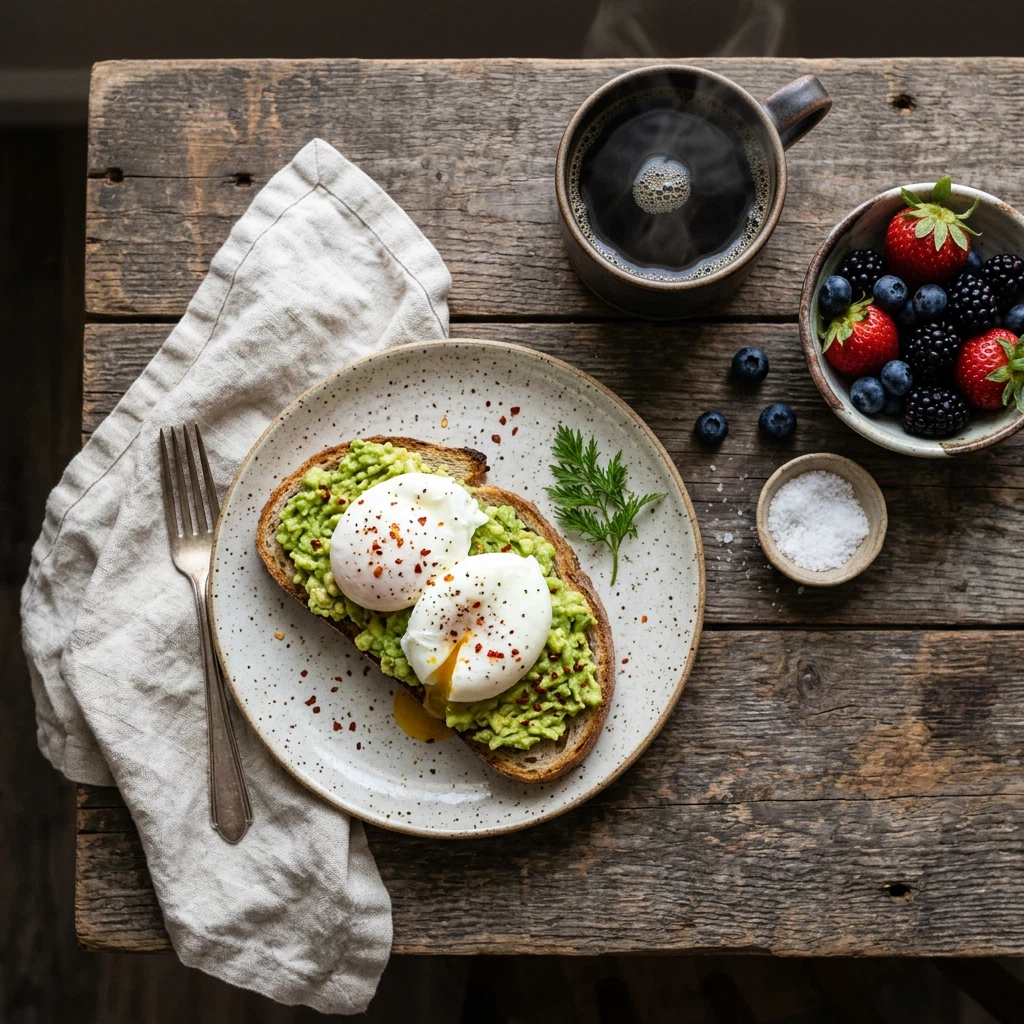
The same prices apply to Text to Image and Image to Image. Web search and image search do not add credits to these rates.
| Resolution | Credits per image | A useful starting point |
|---|---|---|
| 1K | 15 credits | Explore compositions, compare prompt directions, or make an everyday image. This is the default resolution. |
| 2K | 20 credits | Choose a larger output for a selected concept, campaign visual, or detailed edit. |
| 4K | 40 credits | Request the largest available output for a visual that needs more room for detail or cropping. |
Set the creative direction first, then pick the input and output settings that support it.
Keep each generation tied to a specific visual decision.
Open Text to Image for a new visual or Image to Image for an edit. Nano Banana 2.1 is preselected when you follow the links on this page.
Describe the result in plain language. For image editing, upload one to fourteen reference images and explain how each should guide the result.
Pick one of fourteen aspect ratios and 1K, 2K, or 4K resolution. Enable web search or image search if the task would benefit from extra context. Check the displayed credit cost.
Inspect the result for composition, text, and reference details. Make one clear adjustment to your next prompt, or download the image when it meets your brief.
Useful prompts describe visible choices and separate the requested change from the details you want to keep.
Write “a ceramic coffee cup for a spring product campaign” instead of “a nice product photo.” A specific subject and purpose give the composition direction.
Specify camera angle, subject placement, and empty space. For example: “eye-level view, cup in the lower right, clean space on the left for a headline.”
For an edit, try: “Replace the gray background with a sunlit kitchen. Keep the cup shape, handle, printed artwork, and camera angle.”
Explain which image supplies the subject, which supplies the setting, and which supplies the palette. Include only references that help resolve the brief.
Put requested text in quotation marks, and name the light you want: soft window light, direct afternoon sun, or a cool studio setup. Review rendered text after generation.
Avoid asking for several conflicting styles or changing every part of the brief at once. Search can add context, but it does not replace checking names, factual details, or image rights.
Choose square, portrait, landscape, or an extra-wide or extra-tall canvas.
The available aspect ratios are 1:1, 3:2, 2:3, 3:4, 4:3, 4:5, 5:4, 9:16, 16:9, 21:9, 1:4, 4:1, 1:8, and 8:1. Set the ratio for the intended placement before generating so the model can compose for that shape.
Web search and image search can be enabled independently in either image tool. Both begin switched off, and neither changes the 15, 20, or 40 credit cost associated with your chosen resolution.
Choose the input that suits your next image. Both tools include aspect ratio, resolution, web search, and image search controls.
Start with words and build a new image around your idea. Describe a scene, campaign concept, illustration, or product composition.
Generate from a PromptStart with one to fourteen references and ask for a focused edit or a new composition. Describe the details to preserve and the changes to make.
Edit with ReferencesThe settings, costs, and practical details to know before you create.
You can generate an image from a written prompt or edit with reference images. Both workflows let you choose an aspect ratio, output resolution, and optional web or image search.
Each 1K image costs 15 credits, each 2K image costs 20 credits, and each 4K image costs 40 credits. These rates apply to both generation and editing. Enabling web search or image search does not add credits.
Credits charged for a confirmed failed task are returned when AudioX updates its status. A task that is still processing has not been confirmed as failed; check its status again in your generation history.
Choose 1K, 2K, or 4K. The default is 1K. Select the output tier that fits your project and budget; the selected aspect ratio determines the shape of the image.
There are fourteen choices: 1:1, 3:2, 2:3, 3:4, 4:3, 4:5, 5:4, 9:16, 16:9, 21:9, 1:4, 4:1, 1:8, and 8:1. Use square or portrait formats for posts and posters, landscape formats for covers, and the extended formats when your layout calls for them.
Image to Image accepts one to fourteen reference images for a Nano Banana 2.1 edit. Explain how the references should influence the result, especially when they show different subjects, styles, or settings.
Web search lets the model use web context while generating. Image search lets it look for visual references. The controls are independent, available in both image tools, and off by default. Review the output when factual accuracy or source rights matter.
References and precise instructions can help guide consistency. State the features to retain, such as a face, product silhouette, or color palette, and change one part of the brief at a time. Check the result because individual generations can still vary.
You can request a poster, label, or other composition with text. Supply the exact wording, language, placement, and hierarchy. Proofread the generated image and review important brand or production details before publishing.
Visit the AudioX pricing page to review the available plans and credit options. The Nano Banana 2.1 credit charge depends on the selected output resolution, with the same rates in both image tools.
A little preparation makes image generation and editing easier to evaluate.
Start with a prompt or a reference, choose the format, and create with Nano Banana 2.1 in AudioX. Images start at 15 credits in 1K.
Try Nano Banana 2.1