Create a scene from words
Describe the setting, subject, action, and camera. Text to Video gives you a starting point for a new concept without requiring a source image.
Turn a scene you can describe into a scene you can watch. Create from a prompt or animate a first-frame image, with time for the action to unfold and audio generated alongside the picture.
2–30s
Generation duration
1080p
Maximum resolution
Audio
Included in generation
Describe the setting, subject, action, and camera. Text to Video gives you a starting point for a new concept without requiring a source image.
Bring a product photo, illustration, or character image into the video workflow. Use the prompt to explain what moves and which visual details should remain recognizable.
Set any whole-second duration from 2 to 30 seconds. Use a brief take to test a motion, or give a longer action more room to develop.
AudioX requests audio with every Wan 3.0 generation. Include the atmosphere, dialogue, or effects you want in the brief, then listen to the result as part of your review.
Thinking Mode is an optional generation setting in both video tools. It starts switched off, so you can choose when to enable it for another take.
Choose a wide, vertical, square, or classic 4:3 format. Image to Video also offers Auto to follow the source image’s aspect ratio.
Wan 3.0 is available in AudioX’s Text to Video and Image to Video tools, with the same duration, resolution, and credit options.
Choose Text to Video when the scene is still an idea. Establish where it takes place, who or what is in the frame, and what happens during the shot. Separating the subject’s action from the camera movement makes the brief easier to evaluate when the result arrives.
Choose Image to Video when you already have a visual starting point. Upload one image, then describe how its subject or environment should change over time. The first frame supplies the initial appearance; your prompt supplies the intended movement and direction.
Both workflows start at 5 seconds and 720p. Adjust those settings for your project, choose an aspect ratio, and enable Thinking Mode if you want to use it. Audio is included in the generation workflow.
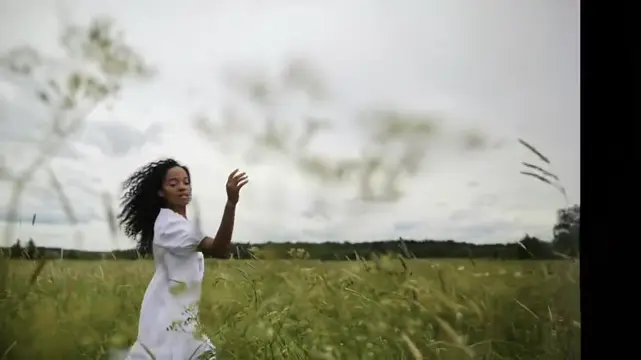
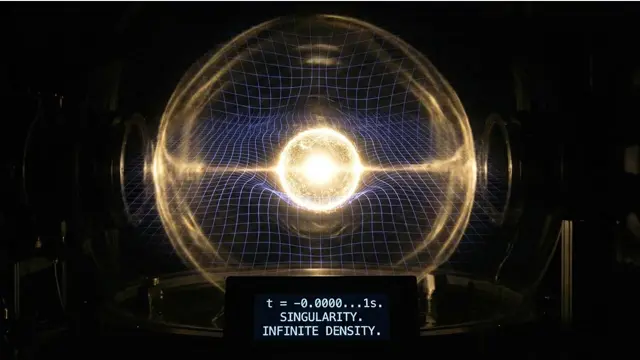
Reference media published on wan30ai.com, presented here as creative inspiration. These examples were not generated in AudioX. The three still images come from that site’s Wan 2.7 collection, while the videos appear on its Wan 3.0 homepage. Video previews play muted.

Compare the Wan video models currently available in AudioX. Start with the duration and format your scene needs, then try the same focused brief across models if you want to compare results.
| Model | Available formats | Choose it for |
|---|---|---|
| Wan 2.5 | 5 or 10 seconds; 480p, 720p, or 1080p. | A short take with a simple choice of duration, or another iteration of an existing Wan 2.5 prompt. |
| Wan 2.7 | 2–15 seconds; 720p or 1080p. | A shorter HD scene, with a whole-second duration between 2 and 15 seconds. |
| Wan 3.0 | 2–30 seconds; 480p, 720p, or 1080p; audio included. | More room for the action to unfold, with optional Thinking Mode and a choice of three resolutions. |
Build the brief around the next visual decision in your project.
Start with a brief you can judge, then refine the part that matters.
Open one of the video tools from this page to preselect Wan 3.0. For Image to Video, upload the image that should establish your first frame.
Describe the setting, action, framing, and sound you want. For image animation, focus on what should happen after the supplied first frame.
Choose 2–30 seconds, 480p, 720p, or 1080p, and the aspect ratio. Thinking Mode is optional. Check the credit total before submitting.
Watch the beginning, middle, and ending, and listen to the audio. Refine one part of the prompt for the next take or download a result that fits your project.
A specific brief gives you specific choices to review.
Start with something visible: “A ceramic mug sits on a wooden table beside a rain-covered window.” Name the subject and its surroundings before adding movement.
Add a focused action: “Steam rises from the mug as a hand reaches into the frame and lifts it.” Match the amount of action to the duration.
For example: “A slow push toward the mug, ending in a close-up.” Avoid mixing several competing camera moves into the same short shot.
When using a first-frame image, identify the details that matter: the subject’s clothing, the product’s shape, or the composition. Explain what should remain recognizable as the scene moves.
Add the intended atmosphere, such as quiet rain or room ambience, and say where the action ends. Review the generated audio and ending before making the next creative decision.
Avoid changing the setting, visual style, subject, and camera all at once when refining a take. A focused adjustment makes it easier to understand what improved.
Text to Video offers five aspect ratios: 16:9, 9:16, 1:1, 4:3, and 3:4. Image to Video offers the same choices plus Auto, which follows the source image’s aspect ratio. Select the frame shape before generating so the composition starts with the intended placement in mind.
Wan 3.0 generates videos from 2 to 30 seconds. Rates are 15 credits per second at 480p, 30 at 720p, and 60 at 1080p in both video tools. A 5-second clip costs 75, 150, or 300 credits respectively. Check the displayed total after adjusting the controls.
Thinking Mode starts off and can be enabled in either workflow. Audio is enabled for Wan 3.0 generations in AudioX; include useful sound direction in the prompt and review the complete result.
Choose the starting material that gives your next shot a clear direction.
Create a new scene from a written brief. Set the subject, action, camera, and sound, then choose the duration and output format.
Create from TextUpload one first-frame image and describe how it should come to life. Follow the image’s shape automatically or choose another supported aspect ratio.
Animate an ImageThe settings and practical details available in AudioX.
Use Text to Video to generate a scene from a written prompt, or Image to Video to animate one first-frame image. Both tools offer duration, resolution, aspect-ratio controls, and optional Thinking Mode.
Select any whole-second duration from 2 to 30 seconds. The default is 5 seconds. Choose enough time for the action you describe, and check the credit total when you change the duration.
Choose 480p, 720p, or 1080p. Wan 3.0 starts at 720p in AudioX, and 1080p is the highest available output resolution.
The rates are 15 credits per second at 480p, 30 at 720p, and 60 at 1080p. A 5-second clip therefore costs 75, 150, or 300 credits. Text to Video and Image to Video use the same rates.
Yes. AudioX requests audio with Wan 3.0 generations. Describe the intended sound in your prompt and review what is generated. There is no separate audio switch in the Wan 3.0 controls.
Use the Thinking Mode option in the Wan 3.0 workbench. It is available in both Text to Video and Image to Video and is off by default.
Both workflows support 16:9, 9:16, 1:1, 4:3, and 3:4. Image to Video also offers Auto to use the source image’s aspect ratio.
Open Image to Video with Wan 3.0 selected, upload one first-frame image, and describe the action and camera movement. Set the duration, resolution, and aspect ratio, then review the displayed cost before generating.
No. They are reference media from wan30ai.com. The videos appear on that site’s Wan 3.0 homepage, and the three stills are drawn from its Wan 2.7 collection. They provide visual inspiration and do not guarantee a specific AudioX result.
A useful take begins with suitable material and ends with checking the details.
Start with words or a first-frame image, choose the format, and create a Wan 3.0 video with audio in AudioX.
Try Wan 3.0