Start with a written idea
Describe the subject, setting, movement, and mood in Text to Video. Choose a format for the destination, from a landscape film frame to a portrait social clip.
Give your next scene a beginning, a movement, and somewhere to go. Turn a written idea into video, bring a still image to life, or continue an existing clip with Seedance 2.5 in AudioX.
3
Creation workflows
4–30s
Generation duration
Up to 4K
Output resolution
Describe the subject, setting, movement, and mood in Text to Video. Choose a format for the destination, from a landscape film frame to a portrait social clip.
Use an image as the first frame and explain how the scene should unfold. Add an optional last frame when you have a particular ending in mind.
Open Video Extend with an existing clip and describe what happens next. Select 4–30 seconds of new material to continue a movement, reveal, or story beat.
Choose 480p, 720p, 1080p, or 4K and a duration that suits the idea. The workbench displays the credit cost for the settings you select.
In Text to Video, use reference images, videos, or audio to guide your brief. Explain the role of each reference and describe the action you want to see.
Enable generated audio when your scene calls for sound. Include useful direction for dialogue, atmosphere, or effects in the prompt, then review the result together with the visuals.
Seedance 2.5 is ByteDance’s video generation model. AudioX brings its text, image, and extension workflows into the tools you already use.
A good video brief connects what is in the frame with what changes over time. Establish the subject and setting, describe the main action, and finish with the camera position or moment you want to reach. Seedance 2.5 gives that brief a generation window from 4 to 30 seconds.
Choose the starting point that gives you the most useful control. A prompt leaves room to invent the scene. A first-frame image anchors its initial appearance. An existing clip supplies the action to continue. For Image to Video, a last-frame image can also guide the destination.
The controls described here are the ones available in AudioX’s Seedance 2.5 tools. Set your duration, resolution, and audio option in the workbench before generating, and review its current credit estimate.
Reference examples published on the Seedance 2.5 pages at Clipdance and invideo. These clips and stills were sourced from those sites; they were not generated in AudioX. Video previews play muted, and results depend on the source material and settings.

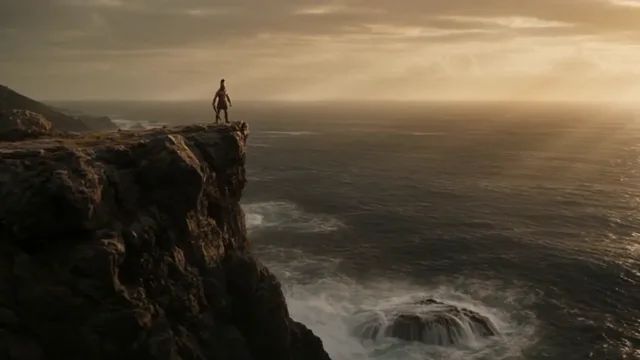
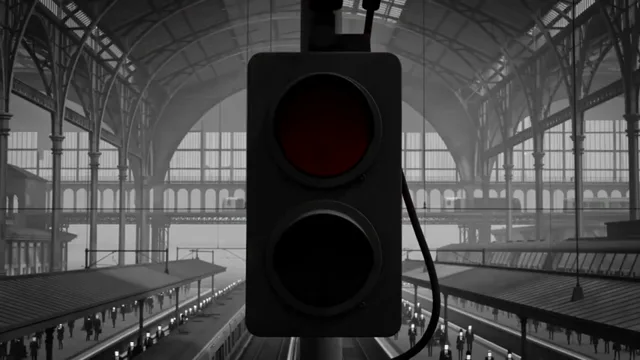
All three Seedance 2.5 workflows offer resolution and duration controls. The right choice depends on what you already have and what the next generation needs to do.
| Workflow | Start with | Use it for |
|---|---|---|
| Text to Video | A prompt, with optional references | Develop an original scene, compare concepts, or describe a shot before you have a starting image. |
| Image to Video | A first frame and an optional last frame | Animate artwork, a product visual, or a character image while guiding the scene from a defined starting point. |
| Video Extend | An existing video and a continuation prompt | Add the next beat to a clip. The duration you select is the amount of new video to generate. |
Keep the next generation focused enough to judge whether it works.
Four steps to create with Seedance 2.5 in AudioX.
Open Text to Video, Image to Video, or Video Extend. The links on this page select Seedance 2.5 for you.
Write the setting, subject, action, and camera movement. Add the images, video, or reference material needed by your chosen workflow.
Choose the duration and resolution, and decide whether to generate audio. Review the workbench’s current credit cost before submitting.
Review the action, composition, and sound. Make a focused adjustment for another take, or bring a suitable result into Video Extend when the story needs more time.
Describe the decisions a viewer can actually see and hear.
Begin with the subject, location, and lighting: “A cyclist waits at a quiet street corner just after sunrise.” This gives the action a setting.
Continue with a clear movement: “She looks over her shoulder, then rides toward the bridge.” Keep the action practical for the chosen duration.
Describe framing and movement in their own sentence: “The camera tracks alongside at eye level, then eases into a wider view.”
Say which reference supplies the character, setting, motion, or sound. For image animation, focus on what should move and what should remain visually consistent.
Finish with a destination for the action. If audio is enabled, describe the intended atmosphere or dialogue. For an extension, connect the first new beat to the end of the uploaded clip.
Avoid packing many unrelated actions into a short clip or asking the camera to move in conflicting directions. Review each result and change the part of the brief that matters most.
Seedance 2.5 offers 480p, 720p, 1080p, and 4K output choices in AudioX. A lower resolution can help when you are comparing ideas; choose the output resolution that suits the version you intend to use. The workbench shows how the selected settings affect credits.
Text to Video offers six aspect ratios: 16:9, 9:16, 1:1, 4:3, 3:4, and 21:9. Plan for the destination before you generate, whether it is a vertical feed, a square placement, or a wide scene.
Choose 4–30 seconds for a new generation. In Video Extend, that number describes the new segment to add, not the total duration of the uploaded clip and its continuation.
Choose the tool that matches the material on your desk.
Build a scene from a written brief and optional image, video, or audio references.
Create from TextBring a first-frame image into motion, with an optional last frame to guide the finish.
Animate an ImageContinue an existing video with a prompt describing the next action, reveal, or ending.
Extend a VideoPractical details about the three AudioX workflows.
Seedance 2.5 is a ByteDance video generation model. In AudioX, you can use it to generate from text, animate an image, or extend an existing video, with selectable duration, resolution, and generated audio.
Choose a duration from 4 to 30 seconds. In Text to Video and Image to Video, this is the length of the generated clip. In Video Extend, it is the length of the new continuation.
The available output choices are 480p, 720p, 1080p, and 4K. Select the option in the workbench and check the current credit estimate before you generate.
Yes. Image to Video uses your first-frame image and supports an optional last-frame image. Describe the movement or transition between the images so the generation has a clear direction.
Yes. The Text to Video workflow supports image, video, and audio references. Use the input controls in the workbench and explain how each reference should influence the scene.
Generated audio is optional. Enable it when you want sound with the video and include relevant audio direction in your prompt. Review the generated sound and its timing before using the result.
Upload an existing clip, describe what should happen next, and choose how many new seconds to generate. Use a prompt that continues the subject, setting, and movement already present at the end of the clip.
The workbench displays the current credit cost for your chosen workflow and settings before you submit. Check that estimate after changing duration, resolution, or other inputs. Visit AudioX’s pricing page for available credit plans.
Choose 16:9, 9:16, 1:1, 4:3, 3:4, or 21:9. Pick the shape for your intended placement before generating so you can compose the scene around it.
No. The gallery contains reference clips and images published on Clipdance’s and invideo’s Seedance 2.5 pages. They are presented as visual inspiration with source labels. They do not guarantee a particular result from a AudioX generation.
Good inputs and a careful final review help you turn a promising take into usable work.
Start with an idea, an image, or a clip worth continuing. Open Seedance 2.5 in AudioX and give your next shot a clear direction.
Try Seedance 2.5